Table of Contents
This document describes in detail the various ways in which you can interact with the grader and profgrader tool on the command line.
Notation
Unless otherwise specified, anything prefixed with a $ character in a code block is a command, and all other content is command output. ... may be used to snip irrelevant output for brevity. # is used as an inline comment, and is neither a command nor output.
Most flags have both short and long forms. For instance, the flag to get the program version may be specified by either -V (capital V) or --version. This document will mostly provide flags in their long form, as their purpose is always more clear that way.
- Note
- All of the command syntax assumes that you have added the executable to your path, which is highly recommended. If you have not, make sure you prefix all invocations with the binary's qualified path, like in the following example, where
graderis located in the~directory:$ ~/grader lab1-2...
Students Only
Example usage:
- Remarks
- More coming soon... Read the output of
--helpfor now
Professor Only
- Warning
- Behavior is undefined if multiple students have the same first and last names.
Example usage:
Here is an example students.csv database:
See more info on the specification of a database.
Example usage without a database:
See more info on not providing a database.
Short and Long Form Output
To change output verbosity, invoke with one of the -q|--quiet or -v|--verbose flags.
Student Database
The student database contains a list of students' first and last names, and is used to aid in locating student lab submissions as well as to provide diagnostics for students with a missing submission. It is recommended to provide a student database; see not providing a database for more info.
By default, a database named students.csv in the current working directory will be used if it exists. To specify a database manually, provide the --database argument, like as follows:
Database Specification
A student database is a Comma-Separated Values (CSV) file. Where reasonable, the official CSV specification, RFC1480, is followed. Requirements 2.1, 2.2 and 2.4 are conformed to, except that lines may be terminated with CRLF (\r\n, i.e. Windows line endings) or simply LF (\n, i.e. Unix line endings). The remaining requirements are disregarded due to unnecessary complications imposed for our very simple use case.
Each record of the database is a single line with the student's last and first name(s), in that order, separated by commas. Spaces and special characters other than a , (comma) are permitted within each of these two fields. This is necessary if, for instance, a student has multiple first or last names, or a compound name with a - (hyphen). Here is an example set of student names, and a corresponding well-formed database:
| First Name(s) | Last Name(s) |
|---|---|
| John | Doe |
| Jane | Doe |
| Anna Leigh | Waters |
| Alice | Lidell |
| Billie-Rose | Tao |
| Kevin | De La Cruz |
| Jack | O'Reily |
To understand how student files are matched based on this database, please see File Matching.
Not Providing a Database
Without a database, profgrader will search for submissions according to the specified assignment and file matcher RegEx (see File Matching). By default, the searching behavior is essentially identical to if a database had been provided, except that a student name may be matched by any sequence of alphabetic characters.
For example, the following invocation of profgrader will only match the files doejane_0000_0000_lab1-2.out and doejohn_0000_0000_lab1-2.out.
File Matching
Files are matched based on a Regular Expression (RegEx). This RegEx is special because there is a special field specifier syntax which is evaluated before the RegEx itself. This syntax is specified surrounding a field name in `` (backticks). Here are the possible field names and what each of them are substituted with:
| Field Name | Substituted with |
|---|---|
| firstname | student's first name in lowercase with all spaces removed |
| lastname | student's last name; same transformation as above |
| base | basename of the lab executable |
| ext | file extension of the lab executable |
Here is the default RegEx, pre-substation:
If we had, for example, a student Kevin De La Cruz and were searching for lab1-2.out, the RegEx would look as follows after substitution: delacruzkevin_\d+_\d+_lab1-2\.out This would match any of the following files:
RegEx matching uses a Modified EMACScript standard. For any basic expression, however, this is entirely unnecessary to understand and the RegEx will simply work as expected. If in doubt, regex101.com is a great place to test your RegEx.
- Remarks
- More coming soon... Read the output of
--helpfor now
Advanced Usage
For details on all supported arguments, use the --help flag.
To check what version of the library you have, use the --version flag. When possible, versioning adheres to the semver spec. The field after -g is the hash of the latest git commit when built.
Output Verbosity Level
To increase or decrease the level of output verbosity use the -v|--verbose or -q|--quiet flags, respectively. These flags may be repeated. --silent is an alias for the minimum level of verbosity.
Description of Levels
- Each level includes all output from levels below, possibly formatted a little differently e.g., Setting the verbosity to
Allresults in all output described in:Summary, andQuiet(though not the retcode fromSilent)
Silent
- Student - Nothing on stdout. Program return code = # of failed tests
- Professor - Nothing on stdout. Program return code = # of students not passing all tests
Quiet
- Student - Overall test results only (# of tests and requirements passed/failed)

- Professor - Per-student score only (percentage and number of tests passed + failed)

Summary (default)
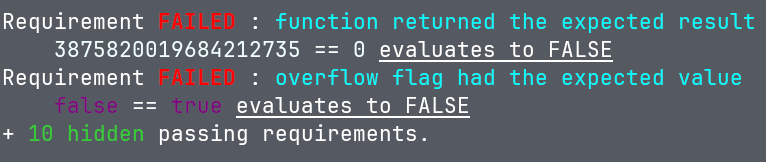
- Student - Lists the names of all tests, but only failing requirements. If necessary, a brief diagnostic is displayed showing why a requirement failed
- Professor - Same as above, but for each individual student
All
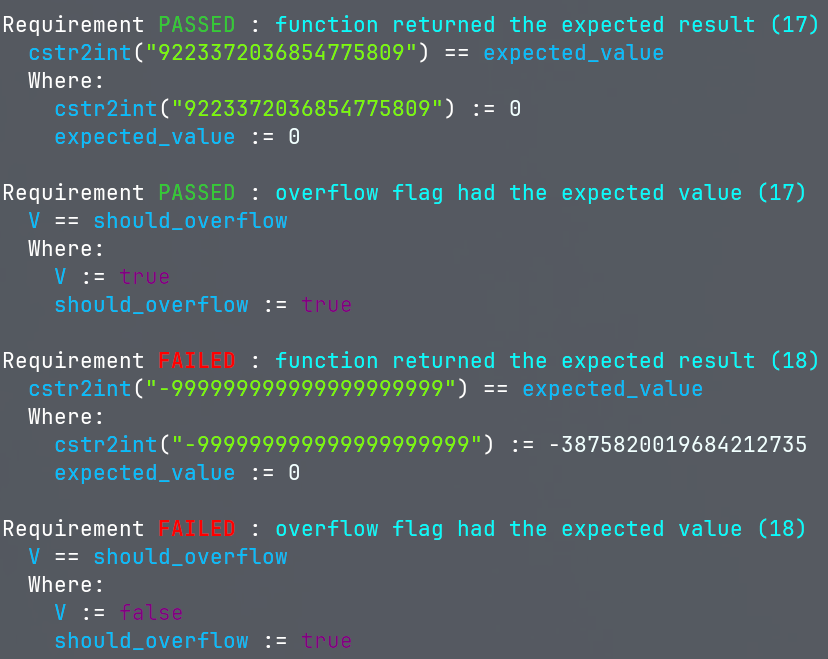
- Student - Lists the result of all tests and requirements. More verbose diagnostics for both failing and passing tests are shown.
- Professor - Same as above, but for each individual student
Extra
(Not yet implemented)
Max
(Not yet implemented)
Adding to PATH
Navigate to the directory where you downloaded the grader executable, then run the following commands: